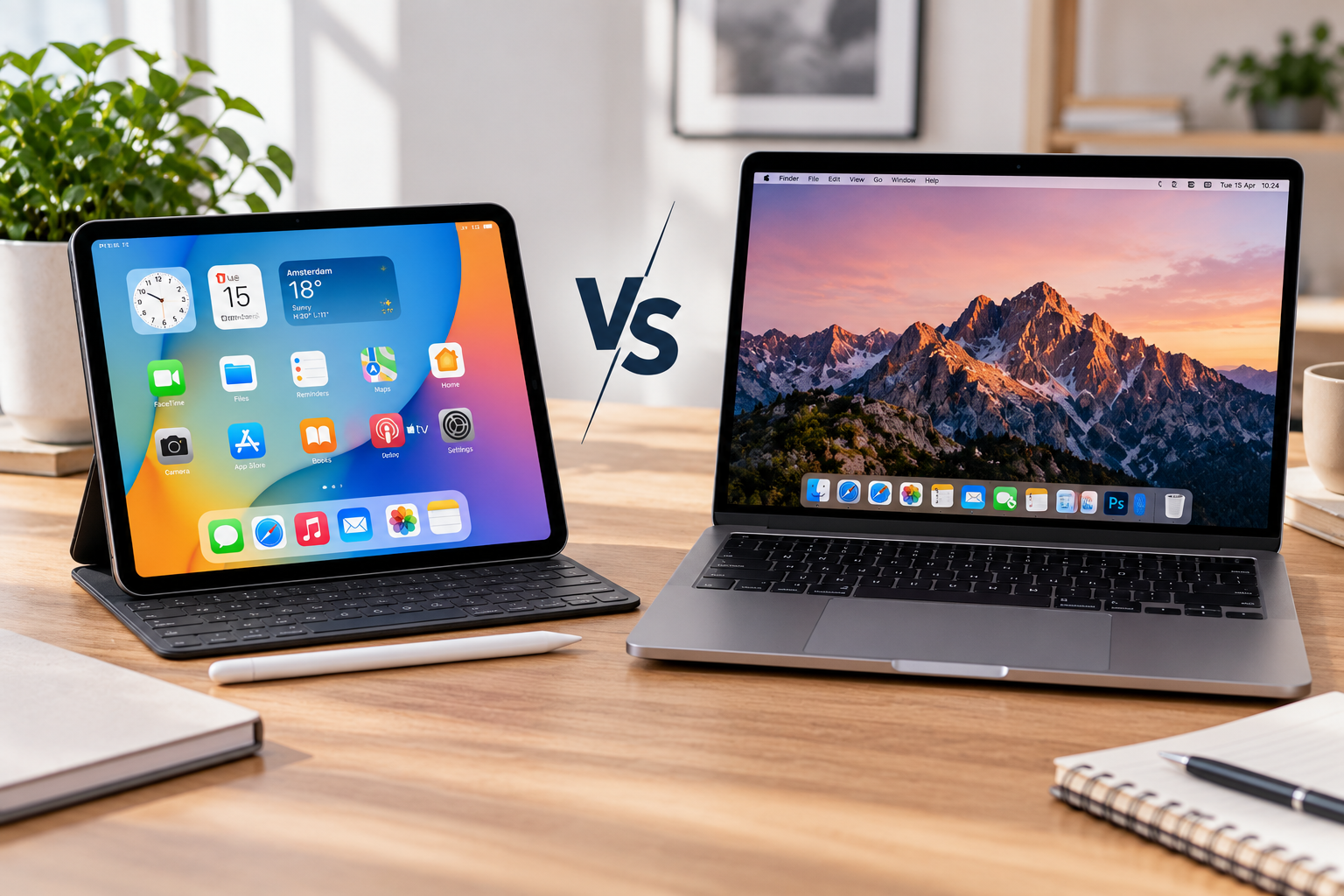
The biggest difference between an iPad and a laptop is not processing power but the operating system and software each device can run. A laptop is usually the safer choice if you need one main computer for school or work, especially for desktop applications and keyboard-heavy tasks. An iPad is stronger for portability, handwritten notes, drawing and touch-based use.
Modern iPads are far more capable than older tablets: iPadOS 27 supports resizable windows, external displays, keyboards, trackpads and external storage. Even so, software compatibility remains the factor most likely to determine whether an iPad can truly replace a laptop.
iPad vs. Laptop: Which Is Better?
For most people buying one primary computer, a laptop is the more flexible starting point.
An iPad becomes more attractive when touch input, Apple Pencil, portability and reading or note-taking are central to the way you use the device.
| Feature | iPad | Laptop |
|---|---|---|
| Operating system | iPadOS | Windows, macOS or ChromeOS |
| Touchscreen | Standard | Depends on model |
| Stylus | Apple Pencil on compatible models | Depends on device |
| Keyboard | Usually an accessory | Built in |
| Desktop software | More limited | Broad support |
| Multitasking | Capable, app-dependent | Usually more flexible |
| File management | Much improved | Generally more control |
| Ports | Usually limited | Varies, often more options |
| Portability | Excellent | Depends on model |
| Drawing and notes | Excellent | Best on suitable 2-in-1 models |
| Specialized work | Depends on app availability | Usually stronger |
| Best as only computer | For some workflows | For most workflows |
Neither column wins every category. The decision depends on what you actually need to do.
What Is the Difference Between an iPad and a Laptop?
The core difference is the combination of operating system, software ecosystem and input method.
An iPad runs iPadOS, which is designed around touch, gestures and Apple Pencil while also supporting keyboards, trackpads and mice.
A conventional laptop runs Windows, macOS or ChromeOS and is built primarily around a keyboard, trackpad or mouse, desktop-style applications and traditional window and file workflows.
That distinction matters more than processor benchmarks.
A powerful iPad chip does not help if the specific desktop application required for your course or job does not exist on iPadOS.
At the same time, describing an iPad as simply a larger iPhone is outdated. Current iPadOS supports workflows that were far less practical on earlier generations of the device.
Software Is the Biggest Difference Between iPad and Laptop
Before choosing between the two devices, make a list of the applications you actually need.
A laptop is usually safer for tasks involving:
- software development;
- engineering applications;
- architecture software;
- advanced spreadsheets;
- specialized accounting or business systems;
- desktop plugins;
- complex professional production workflows.
The problem is not always that an iPad lacks an app entirely. Sometimes an iPad version exists but does not include every feature of its Windows or Mac counterpart.
That can be irrelevant for a casual user and a major problem for someone whose job depends on a specific function.
On the other hand, iPad has serious software for drawing, photo editing, video editing, music production, document work and some CAD or design workflows.
So the useful question is not “Can an iPad do professional work?”
It is:
Can the iPad run the exact applications and features my work requires?
Check that before buying an iPad as a laptop replacement.
Multitasking: Can an iPad Work Like a Laptop?
Much more than it used to.
With current iPadOS, you can work with multiple apps or multiple windows from the same app, resize and move windows, minimize them and arrange them on screen. Apple offers both Windowed Apps and Stage Manager for multitasking.
Apple Support — Work With Multiple Windows on iPad
That makes tasks such as keeping a browser beside Notes, moving between documents and email or using several Safari windows much more natural than on older iPads.
But modern iPad multitasking still follows iPadOS conventions rather than becoming identical to Windows or macOS.
A laptop is usually easier when your work involves:
- many simultaneous windows;
- constant switching among several applications;
- complicated drag-and-drop workflows;
- several monitors;
- desktop utilities running together;
- large numbers of files and folders.
The difference has narrowed, but it has not disappeared.
Keyboard, Mouse and Touchscreen
Input is one area where the devices start from opposite directions.
An iPad is touch-first. You can tap directly on the screen, draw or write with Apple Pencil and then add a keyboard, trackpad or mouse when needed.
That flexibility is excellent for handwritten notes, diagrams, PDF annotation and visual work.
The downside is that the keyboard is normally a separate purchase.
For long essays, spreadsheets, email, coding and data entry, a standard laptop starts with the form factor those tasks require: physical keyboard below the screen, trackpad in front of it and a stable hinged design.
There are exceptions. Many Windows 2-in-1 laptops support both touch and a stylus, so the comparison is not simply “iPad has touch, laptop does not.”
When comparing prices, compare the setup you will actually use. If an iPad needs a keyboard and Pencil to meet your needs, include those accessories in the total.
File Management and External Storage
Another outdated claim is that an iPad cannot work with ordinary files or USB storage.
The Files app can organize folders, move, rename, compress and share files. iPads can also access compatible external USB drives and SD cards.
iPadOS 27 further improves file-transfer performance, including transfers between an iPad and an external drive.
For everyday documents, downloads, cloud storage and external media, that may be entirely sufficient.
Desktop operating systems still tend to offer greater flexibility for people working with complex folder structures, several drives, batch operations, advanced backup systems or specialized file utilities.
The distinction is therefore not “files versus no files.” It is how much control your workflow requires.
External Displays
Compatible iPads can extend their workspace onto an external display rather than simply mirroring the tablet.
Apps and windows can be moved between the iPad and external screen, giving supported models a more desktop-like setup.
Apple Support — Move an App to an External Display
That makes an iPad more practical at a desk, particularly when paired with a keyboard and pointing device.
A laptop is still usually the more flexible choice for complex multi-monitor setups, especially in professional environments.
iPad vs. Laptop for Students
For students, the right device depends heavily on the course.
An iPad is particularly good for:
- handwritten lecture notes;
- annotating PDFs;
- digital textbooks;
- drawing diagrams;
- reading;
- creative subjects;
- carrying a lightweight device around campus.
A laptop is generally stronger for:
- long essays;
- research involving many windows;
- spreadsheets;
- coding;
- specialist course software;
- desktop applications.
The deciding factor is often not note-taking but software required by the degree.
An art student who works mainly with drawing and note-taking apps may find an iPad extremely practical. An engineering or computer-science student may discover that mandatory applications require Windows, macOS or a traditional development environment.
If you can afford only one device and do not yet know what software future classes will require, a laptop is usually safer.
If you already have a laptop, an iPad can be an excellent secondary device for lectures, reading and handwritten work.
iPad vs. Laptop for Work
An iPad can be enough for jobs centered around:
- email;
- browser-based tools;
- meetings;
- presentations;
- document review;
- note-taking;
- lightweight content creation;
- compatible photo and video apps.
A laptop is generally more practical for:
- advanced Excel work;
- software development;
- accounting systems;
- data analysis;
- specialized enterprise applications;
- complex content-production workflows;
- heavy multitasking.
Job title alone does not decide the answer.
A writer who mainly works in documents and a browser may be perfectly comfortable on an iPad with a keyboard. An analyst relying on complex spreadsheets, macros and proprietary desktop applications may not be.
iPad vs. Laptop for Drawing and Note-Taking
This is one of the clearest iPad strengths.
Apple Pencil makes it natural to:
- write notes by hand;
- annotate PDFs;
- sketch;
- draw;
- mark up documents;
- combine handwritten and typed material.
A normal clamshell laptop is less comfortable for those tasks unless it includes a touchscreen and suitable stylus.
For a user whose priority is handwritten notes plus portability, the iPad is often the more natural device.
Can an iPad Replace a Laptop?
Yes, for some people.
An iPad can realistically serve as the main computer if most of your work involves:
- web browsing;
- email;
- streaming;
- note-taking;
- basic document editing;
- presentations;
- drawing;
- compatible creative applications.
Replacement becomes less practical if you depend on:
- Windows- or macOS-only software;
- development tools;
- desktop plugins;
- complex spreadsheets;
- advanced peripheral configurations;
- extensive desktop-style multitasking.
An iPad can replace a laptop when your workflow fits the available apps, not simply because its processor is fast enough.
Is an iPad Cheaper Than a Laptop?
Sometimes, but the comparison can be misleading.
A basic iPad without accessories may cost less than many laptops. But a laptop-like iPad setup may require:
- the iPad itself;
- keyboard and trackpad;
- Apple Pencil;
- additional storage;
- possibly a hub or adapter.
At the premium end, the complete iPad setup can cost as much as — or more than — a capable laptop.
That does not make it poor value if touch and Pencil are central to your workflow. It simply means the base tablet price is not always the meaningful comparison.
Which Should You Buy: iPad or Laptop?
| Your main need | Better starting choice |
|---|---|
| Only computer for school | Laptop |
| Only computer for general work | Laptop |
| Handwritten notes | iPad |
| Drawing / Apple Pencil | iPad |
| Coding | Laptop |
| Specialized professional software | Laptop |
| Reading and media | iPad |
| Maximum portability | iPad |
| Heavy multitasking | Laptop |
| Already own a laptop and want a second device | iPad |
| Keyboard-heavy work | Laptop |
| Touch-first workflow | iPad |
This is a starting point rather than a rule.
If you need one device and are unsure what software you may require later, a laptop is generally the safer and more flexible choice. An iPad makes more sense when portability, touch, Apple Pencil and handwritten work matter more than unrestricted desktop software. Before buying either one, check the exact applications you need — that difference usually matters more than processor benchmarks or screen size.